Part 0 - Setup and Basic Usage
A short quickstart to get C2TeamServer running locally (raw binary or Docker) and connect the client. The steps below show how to:
- download the latest release,
- run the TeamServer (local or Docker),
- extract the mTLS certificate for the client,
- install and run the client.
Prerequisites:
wget/curl,jq,tar,docker(for the Docker section).
1.1 — Download the latest release (raw)
This fetches the latest Release.tar.gz from the repository’s GitHub releases and extracts it to ./C2TeamServer:
# fetch latest Release.tar.gz and extract
wget -q "$(wget -q -O - 'https://api.github.com/repos/maxDcb/C2TeamServer/releases/latest' \
  | jq -r '.assets[] | select(.name=="Release.tar.gz").browser_download_url')" -O ./C2TeamServer.tar.gz

mkdir -p C2TeamServer
tar xf C2TeamServer.tar.gz -C C2TeamServer --strip-components=1

# verify
ls -lh C2TeamServer
total 36K
drwxr-xr-x 2 root root 4.0K Oct 20 04:29 LinuxBeacons
drwxr-xr-x 2 root root 4.0K Oct 20 04:29 LinuxModules
drwxr-xr-x 2 root root 4.0K Oct 16 07:33 Scripts
drwxr-xr-x 3 root root 4.0K Oct 20 04:29 TeamServer
drwxr-xr-x 2 root root 4.0K Oct 20 04:29 TeamServerModules
drwxr-xr-x 2 root root 4.0K Oct 16 07:33 Tools
drwxr-xr-x 2 root root 4.0K Oct 20 04:29 WindowsBeacons
drwxr-xr-x 2 root root 4.0K Oct 20 04:29 WindowsModules
drwxr-xr-x 2 root root 4.0K Oct 16 07:33 www
You should see a TeamServer/ directory.
1.2 — Run the TeamServer locally
Change into the TeamServer directory and run the binary:
cd C2TeamServer/TeamServer
./TeamServer
Example startup log:
[2025-10-20 02:34:17.386] [TeamServer] [info] TeamServer logging initialized at info level
[2025-10-20 02:34:17.386] [TeamServer] [info] Authentication enabled for 2 user(s) using credentials file: auth_credentials.json
[2025-10-20 02:34:17.488] [TeamServer] [info] Loaded 37 TeamServer module(s) from ../TeamServerModules/
[2025-10-20 02:34:17.490] [TeamServer] [info] Team Server listening on 0.0.0.0:50051
Notes:
- Ensure the binary is executable (
chmod +x TeamServer) and that any required shared libraries are present on your host.- If you hit libc / glibc incompatibilities, use the Docker option below (the Docker image packages a compatible runtime).
2.1 — Run via Docker
If you prefer containerized execution (recommended to avoid host library issues), build and run the official Dockerfile.
Build the image
# fetch Dockerfile from repo (optional) and build
curl -sL https://raw.githubusercontent.com/maxDcb/C2TeamServer/refs/heads/master/Dockerfile -o Dockerfile
sudo docker build -t exploration-teamserver .
Run the container (detached, with name)
Give the container a deterministic name for easy access:
sudo docker run -d --name teamserver \
  -p 50051:50051 -p 80:80 -p 443:443 -p 8443:8443 \
  exploration-teamserver
Example startup lines from the container:
[2025-10-20 08:14:57.313] [TeamServer] [info] TeamServer logging initialized at info level
[2025-10-20 08:14:57.314] [TeamServer] [warning] Failed to load ../TeamServerModules/libEnumerateShares.so
[2025-10-20 08:14:57.315] [TeamServer] [info] Loaded 36 TeamServer module(s) from ../TeamServerModules/
[2025-10-20 08:14:57.318] [TeamServer] [info] Team Server listening on 0.0.0.0:50051
If you want to inspect or persist files
- To access files generated inside the container (e.g., configs, logs), use a named volume or
docker cp. - Example: extract the built
Releasefolder to the host (one-time) so you can modify/configure it:
# create a temporary container and copy Release out
CID=$(docker create exploration-teamserver)
sudo docker cp "$CID":/opt/teamserver/Release /opt/C2TeamServer
docker rm "$CID"

# then run with a bind mount if you want the host and container to share it:
sudo docker run -d --name teamserver \
  -v /opt/C2TeamServer:/opt/teamserver/Release \
  -p 50051:50051 -p 80:80 -p 443:443 -p 8443:8443 \
  exploration-teamserver
Tip: Keep the first
docker create+docker cpstep if you want a host copy of the release content (binary + configs) to edit directly.
2.2 — Extract mTLS cert for the client
The client requires the server certificate (server.crt) to perform mTLS. If running in Docker, extract it from the running container:
# copy the server cert to host
sudo docker cp teamserver:/opt/teamserver/Release/TeamServer/server.crt ./

# then point the client to it:
export C2_CERT_PATH="$(pwd)/server.crt"
If you ran the server natively, server.crt is already in C2TeamServer/TeamServer/ — adjust C2_CERT_PATH accordingly.
3 — Install & run the client
This project ships a Python client in the C2Client subdirectory. The example below uses uv (Astral uv) to install the client from the repository; you can also use pip or install from source if preferred.
# example with 'uv' (as used in the repo examples)
uv tool install git+https://github.com/maxDcb/C2TeamServer.git#subdirectory=C2Client

# set the path to the server certificate
export C2_CERT_PATH=/path/to/server.crt

# run the client
c2client
Startup output typically shows the client loading modules:
Cloning PeDropper ...
Successfully imported DreamWalkers
Successfully imported C2Client.Scripts.listDirectory
...
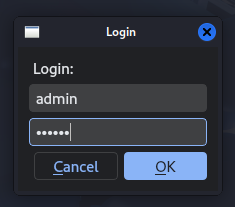
Default credentials
The default admin credentials shipped for quick local tests:
admin:admin
Troubleshooting & tips
-
Binary not found when mounting: if you mount an empty host folder over
/opt/teamserver/Release, you will hide the image content and the entrypoint will fail. Either:- copy the release out of the image first (
docker cp) and mount that host folder, or - mount a specific subfolder (e.g.,
logs) instead of the entireReleasepath.
- copy the release out of the image first (
- Permissions: ensure
TeamServeris executable (chmod +x). - Ports: default gRPC port is
50051; additional services may listen on80,443,8443depending on listener setup; adjust to your needs.
Example: full, reproducible flow (Docker + client)
# 1) Build
sudo docker build -t exploration-teamserver .

# 2) Create a host copy of the release
CID=$(sudo docker create exploration-teamserver)
sudo docker cp "$CID":/opt/teamserver/Release /opt/C2TeamServer
sudo docker rm "$CID"

# 3) Run container with host Release mounted (for easy editing)
sudo docker run -it --rm --name exploration-teamserver -v /opt/C2TeamServer/Release:/opt/teamserver/Release -p 50051:50051 -p 80:80 -p 443:443 -p 8443:8443 exploration-teamserver

# 4) Extract server cert for client use
export C2_CERT_PATH="/opt/C2TeamServer/Release/TeamServer/server.crt"

# 5) Install & run client
uv tool install git+https://github.com/maxDcb/C2TeamServer.git#subdirectory=C2Client
c2client
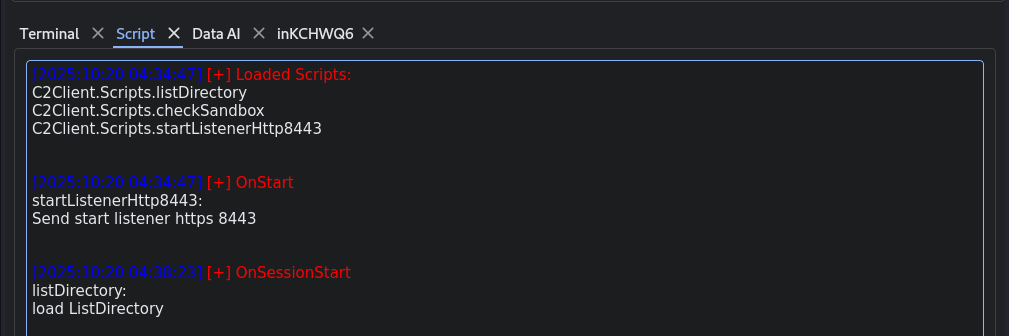
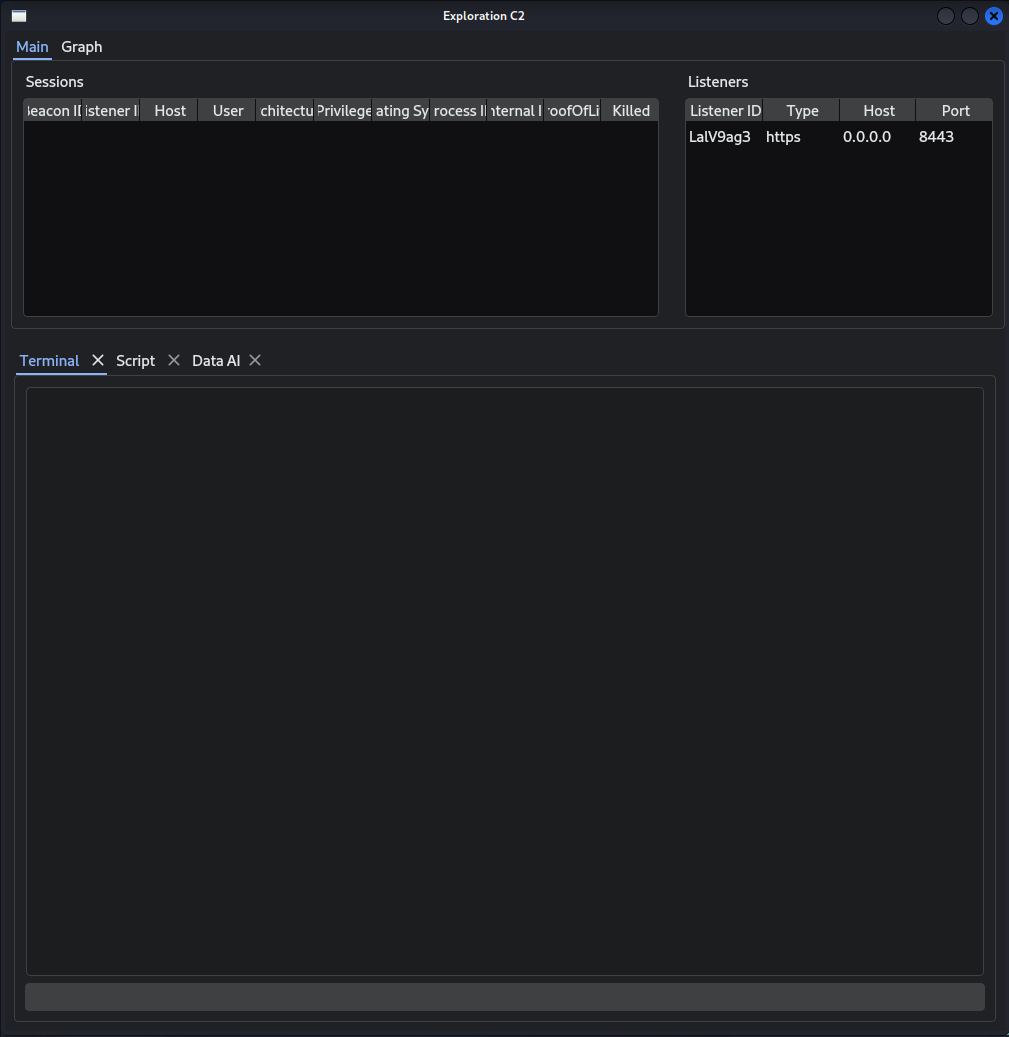
At the start of the client, some basic scripts are executed to launch a listener on port 8443 and load the ListDirectory module when a beacon connects.
Visual
4 — First beacon
Linux beacon binaries are located in Release/LinuxBeacons. If you previously extracted the release from the Docker image to your host (see earlier steps), the beacon binary is ready to run from that path. Otherwise, copy the BeaconHttp binary from the container to your host before running it.
Run the HTTP beacon (local test)
# go to the extracted release folder
cd /opt/C2TeamServer/Release/LinuxBeacons

# make sure the binary is executable
chmod +x BeaconHttp

# run the beacon and point it to the TeamServer
./BeaconHttp 127.0.0.1 8443 https
127.0.0.1— TeamServer host (replace with TeamServer IP or hostname when remote).8443— port configured for the HTTP(S) listener (adjust if your listener uses another port).https— protocol; usehttponly for local/insecure tests.
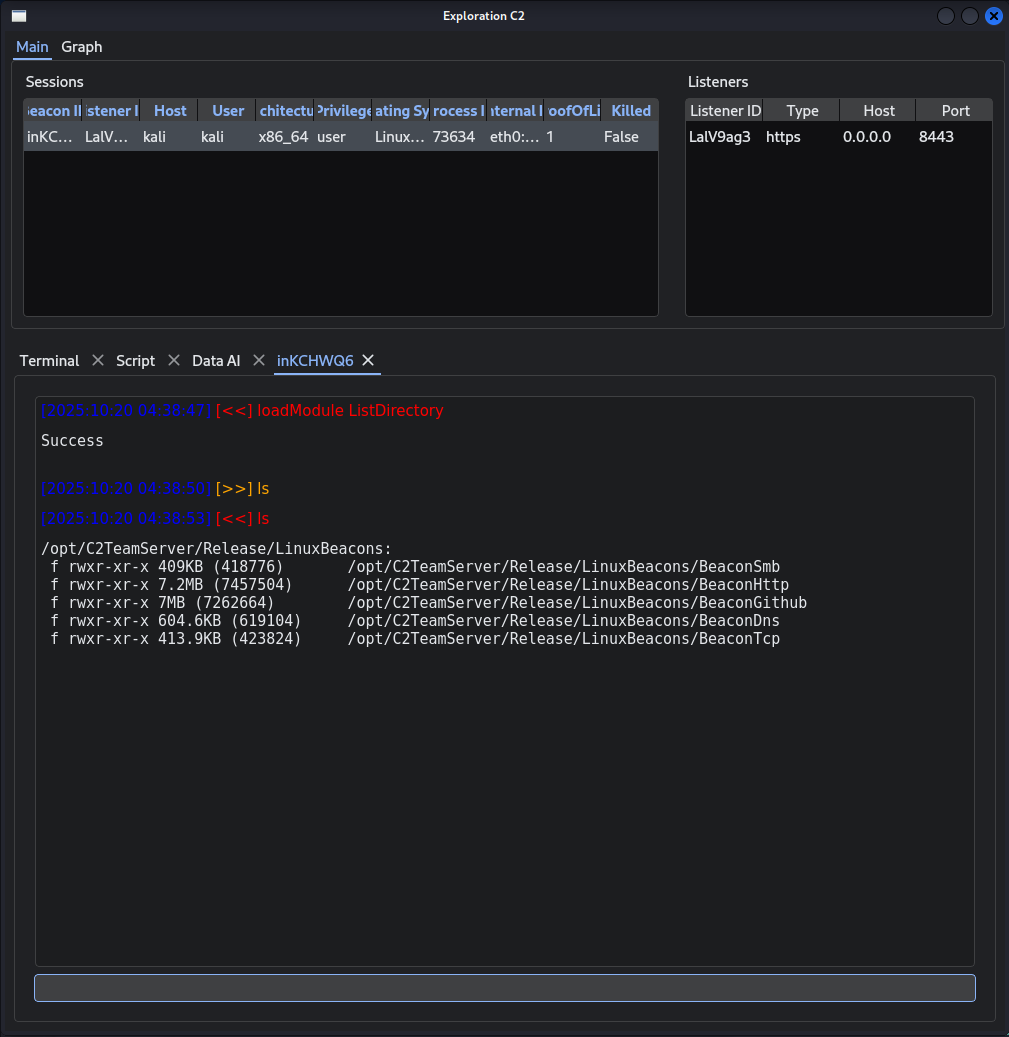 Example: a successful HTTP beacon registration shown in the TeamServer console.